Instructions

When your replacement consumables arrive

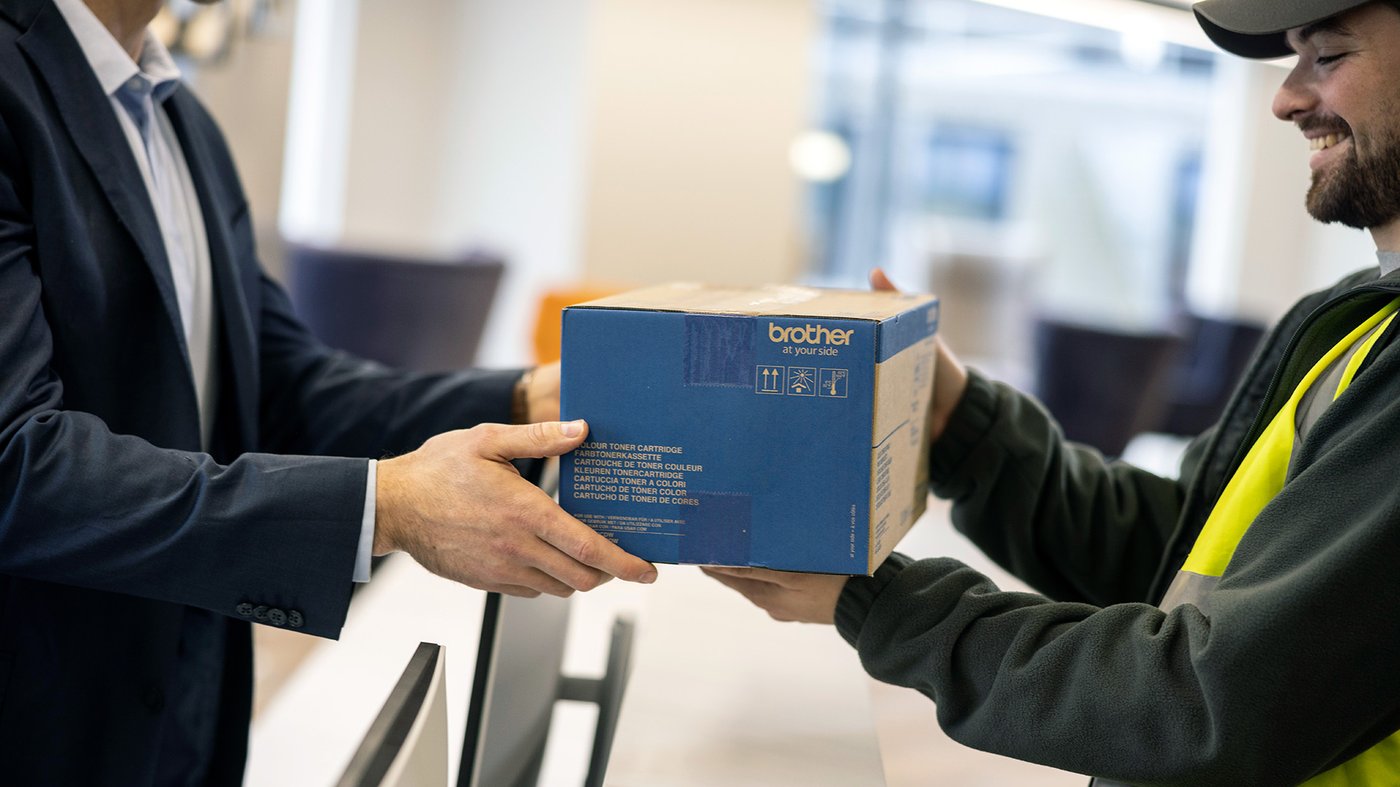
A delivery worker hands a Brother branded carton to an office employee across a counter.

Step 1

When your replacement consumable arrives, store it in a safe, easy-to-find location until your device alerts you that a replacement is required. Replacing consumables too early can affect tracking and future deliveries.
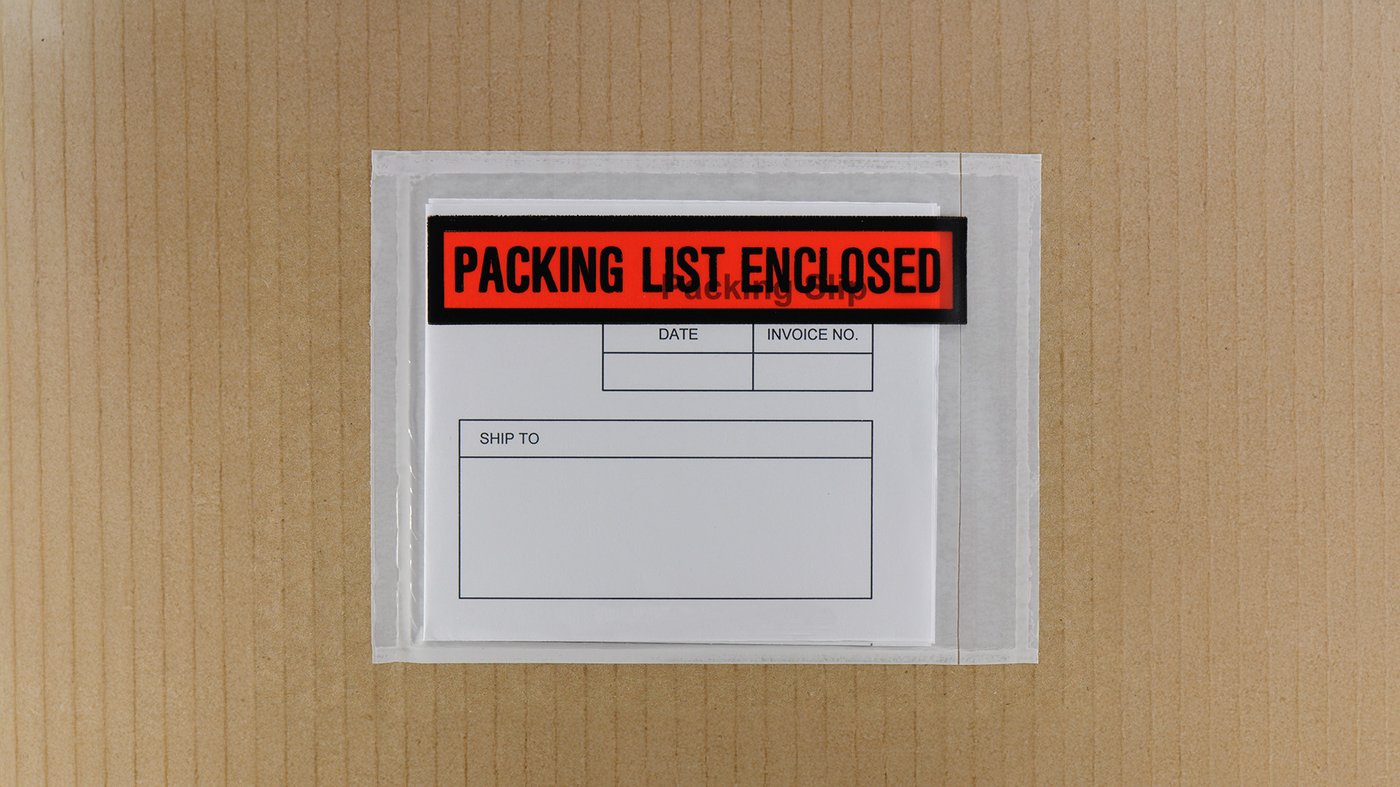
A packing list envelope labeled Packing List Enclosed is attached to a cardboard box, showing a blank shipping form inside.

Step 2

Check the delivery note (packing slip) attached to the box or included in the courier bag. This note confirms which device the supply belongs to. Using supplies for the wrong device may affect performance and disrupt future deliveries.

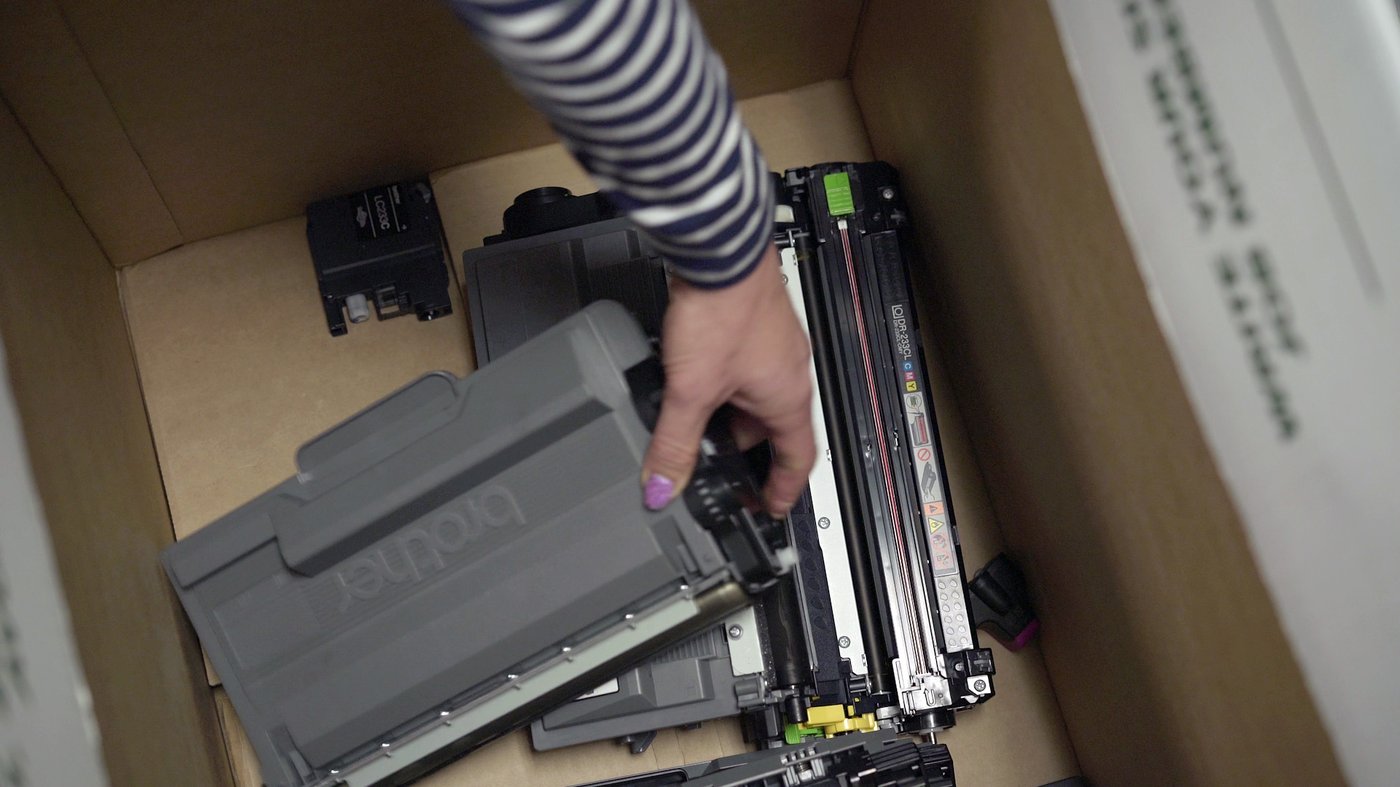
Hand placing used Brother printer cartridges into a cardboard recycling box.

Step 3

After replacing the consumable, place the used item and its packaging in your Brother recycling box. Through our partnership with Recycling Group, these materials are responsibly processed and repurposed into new products to support sustainable printing.

Recycling Group outdoor sign with green branding and tagline promoting sustainable recycling solutions.

Recycling made simple

Through Brother’s free recycling programme, your business can easily recycle used Brother and Konica Minolta consumables and packaging to help reduce waste and support a circular economy. Request a free pick-up and replacement box through our Recycling Request Form, attach the provided prepaid courier label, and we’ll ensure your materials are processed responsibly.

You can also manage requests directly through the Recycling Group portal. Alternatively, if you don't have floor space for a recycling box, you can drop off consumables at any one of our nationwide recycling collection points.
Contact Us

If you need assistance with automated consumables, please contact us using the form below. For technical or troubleshooting issues, scan the QR code on your device for support.

Support

Guides to help you replace consumables

Access the online user guides below to learn how to replace consumables, manage settings and more. To get started, enter your printer model on the guide page, then navigate to the help topic you need. Each guide provides clear, step-by-step instructions for Brother and Konica Minolta devices.
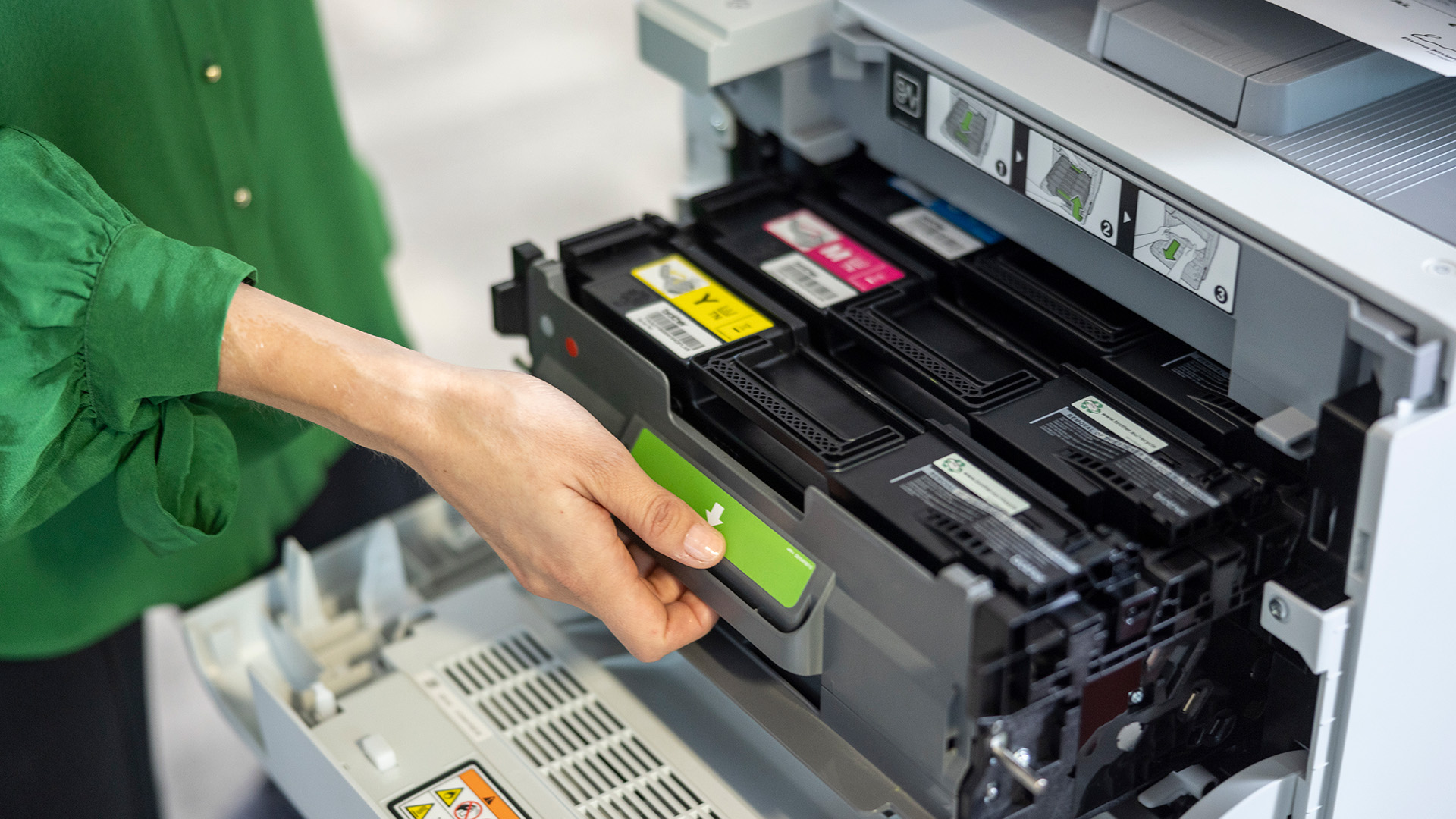
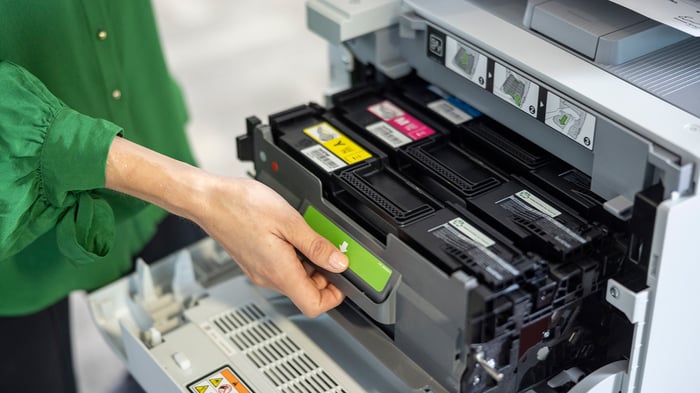
A person removes a toner cartridge from a Brother printer, showing the internal colour cartridges and labelled installation guides.

Brother Online User Guides

Find guides for Brother printers, including instructions for replacing toner, ink, or drums.

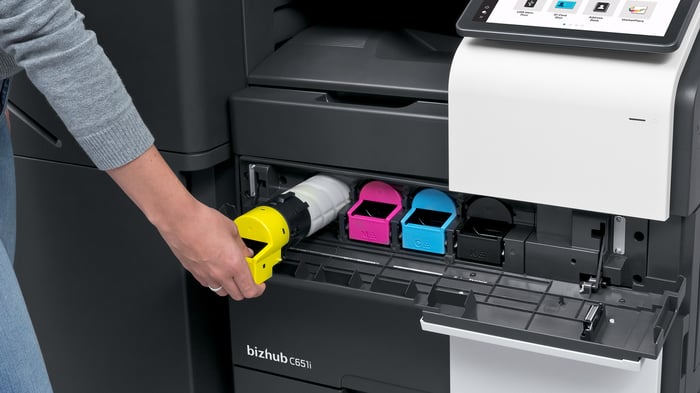
A person replaces the yellow toner cartridge inside a Konica Minolta bizhub C651i printer, with the magenta, cyan, and black toner slots visible.

Konica Minolta Online User Guides

Search your Konica Minolta printer model to access help for replacing consumables and performing basic maintenance.

Brother How-Tos

How to replace a Brother toner cartridge
  1. Make sure the printer is turned on, then press the front cover release button and open the front cover.
  2. Hold the green-labeled handle on the drum unit and pull it out until it stops.
  3. Carefully lift the used toner cartridge out of the drum unit.
  4. Unpack the new toner cartridge and gently shake it from side to side a few times to distribute the toner evenly. Remove any protective covers or seals.
  5. Insert the new toner cartridge into the drum unit, matching the color of the cartridge with the color label on the drum.
  6. Push the drum unit back into the printer until it locks into place, then close the front cover securely. The printer will automatically detect the new cartridge.

Tips

  • Only unpack the new toner cartridge when you are ready to install it. Leaving it open can shorten its life.
  • Keep a new toner cartridge on hand when you see a Toner Low warning.
  • To ensure high-quality printing, always use Brother Original toner cartridges.
  • Do not refill or use third-party toner cartridges, as this may affect print quality or damage the machine.
  • After replacing the toner, wait until the display returns to Ready Mode before turning off the printer or opening the front cover.

For more information visit: https://support.brother.com/g/b/countrytop.aspx?c=nz&lang=en

How to replace a Brother drum unit
  1. Make sure the printer is turned on, then press the front cover release button and open the front cover.
  2. Hold the green-labeled handle on the drum unit and pull it out until it stops.
  3. Carefully lift the front of the drum unit and remove it from the printer using the handles. Always hold the handles. Do not carry the drum by its sides.
  4. Unpack the new drum unit and remove all protective materials.
  5. Lift each toner cartridge out of the old drum unit, then insert it into the new drum unit, matching the color of each cartridge with the color label on the drum.
  6. Gently slide the new drum unit into the printer until it stops, then push it back until it locks into place.
  7. Close the front cover securely. The printer will automatically detect the new drum unit.

Tips

  • Only unpack the new drum unit when you are ready to install it. Exposure to light can reduce its life.
  • For best performance and print quality, always use Brother Original drum units.
  • If you see a Replace Drum or Drum End Soon message, replace the drum promptly to maintain print quality.
  • Do not use non-Brother drums, as they may reduce print quality and shorten your printer’s lifespan.
  • Keep your printer in a clean, dust-free environment with good ventilation.

For more information visit: https://support.brother.com/g/b/countrytop.aspx?c=nz&lang=en

How to replace a Brother waste toner cartridge
  1. Open the front door of the printer to access the waste toner box.
  2. Press down on the two blue clips holding the waste toner box in place.
  3. Slowly pull the waste toner box out of the machine. Avoid tilting it to prevent toner from spilling.
  4. Insert the new waste toner box into the slot, ensuring it is fully seated and secure.
  5. Close the front door to resume printing.

For more information visit: https://support.brother.com/g/b/countrytop.aspx?c=nz&lang=en

How to replace a Brother ink cartridge

Your Brother machine is equipped with an ink dot counter. The ink dot counter automatically monitors the level of ink in each of the four ink cartridges. When the machine detects that an ink cartridge is running out of ink, the machine will display a message.

  1. Open the ink cartridge cover.
  2. Press the lock release lever to release the ink cartridge colour indicated on the LCD and remove the ink cartridge from the machine. Important: Only press the lock release lever on the colour cartridge that is empty, pressing another colour might cause the machine to report that colour now needs replacing.
  3. Open the new ink cartridge bag for the color indicated on the LCD, and take out the ink cartridge.
  4. Do not touch the ink cartridge in the area near the metal contact or chip, as this can prevent the machine from detecting the cartridge.
  5. Shake the ink cartridge horizontally about 15 times to distribute the ink evenly before inserting it into the machine.
  6. Insert the ink cartridge in the direction of the arrow on the label. Each color has its own correct position.
  7. Gently push the area marked "PUSH" until the ink cartridge locks into place, and then close the ink cartridge cover.
  8. The machine resets the ink dot counter. If the machine does not detect the ink cartridge after you install it, check that the ink cartridge is installed correctly. Remove the ink cartridge and reinstall it slowly until it locks into place.

For more information visit: https://support.brother.com/g/b/countrytop.aspx?c=nz&lang=en

Konica Minolta How-Tos

How to replace a Konica Minolta toner cartridge

When a replacement toner is required, on-screen instructions will guide you through each step of the process.

Tips

  • Shake a new toner cartridge gently 5 to 10 times before installing it.
  • If a non-black toner cartridge is empty, you can continue printing temporarily using only black toner. Tap Continue, then select your desired print job.
  • Do not attempt to open, disassemble, or remove remaining toner from the cartridge.
Notice
  • Install each toner cartridge in its correct color position. Forcing a cartridge into the wrong slot may cause damage or printing errors.
How to replace a Konica Minolta waste toner box
When a replacement waste toner box is required, on-screen instructions will guide you through each step of the process.
  1. Open the front door of the printer to access the waste toner box.
  2. Press down on the two blue clips holding the waste toner box in place.
  3. Slowly pull the waste toner box out of the machine. Avoid tilting it to prevent toner from spilling.
  4. Insert the new waste toner box into the slot, ensuring it is fully seated and secure.
  5. Close the front door to resume printing.
How to replace a Konica Minolta staple cartridge (FS-539/FS539-SD)
  1. Open the Front Door of the Finisher

  2. Unlock the Staple Cartridge

  3. Pull out the Staple Cartridge

  4. Remove any empty staple cases from the Staple Cartridge

  5. Attach a new staple case to the Staple Cartridge

  6. Attach the Staple Cartridge

  7. Close the Front Door of the Finisher

 Tips

  • Do not remove staples that remain in the machine. Otherwise, the stapling function will activate but no sheets will be stapled.

How to replace a Konica Minolta staple cartridge (FS-533)
  1. Pinch the Lock Release Lever, and slide the Finisher
  2. Pull the Punch Kit Release Lever[FS2] in the arrow direction, and open the Punch Kit
  3. Unlock the Staple Cartridge
  4. Pull out the Staple Cartridge
  5. Remove any empty staple cases from the Staple Cartridge
  6. Attach a new staple case to the Staple Cartridge
  7. Attach the Staple Cartridge
  8. Close the Punch Kit
  9. Close the Finisher
Tips

Do not remove staples that remain in the machine. Otherwise, the stapling function will activate but no sheets will be stapled.